Reinstalling Software SBC from ISO Image
The device is pre-installed on the device’s server. If a clean installation of the device’s software is required, download the latest installation image from the AudioCodes website and install the software from the BMC Web interface > Virtual Media.
|
●
|
DVD-RW is currently not operational. |
|
●
|
A clean installation deletes any user configuration, data or snapshots that were previously on the device. |
|
1.
|
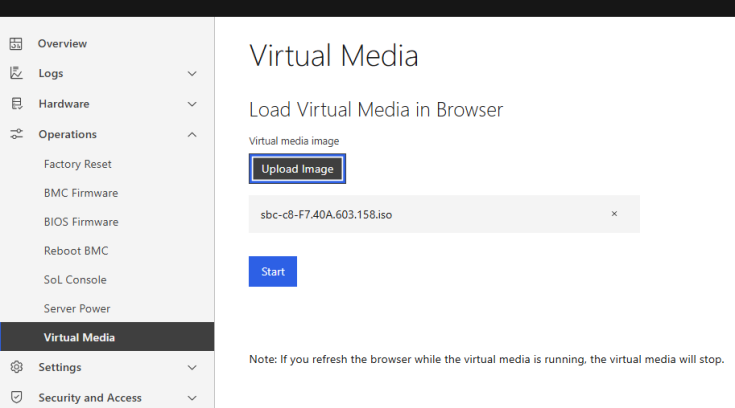
In the BMC Web interface menu, choose Virtual Media > Upload Image (see following figure). |
|
2.
|
Browse to the device's software ISO file that you downloaded from AudioCodes website, and then click OK. |
|
3.
|
Click Start to attach the ISO file. |
|
4.
|
Reset the server from Power Operations > Reboot. |
|
5.
|
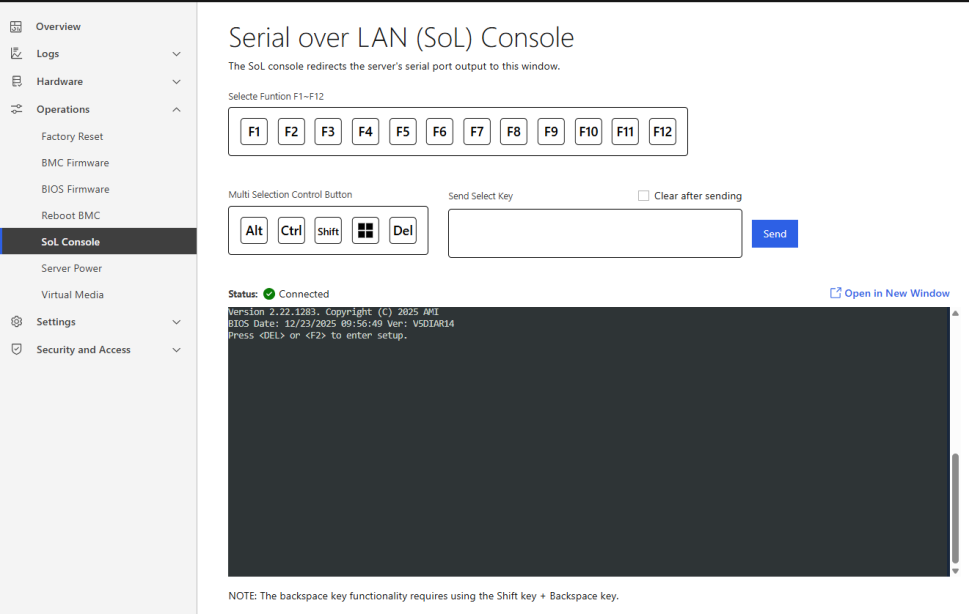
Go to SoL Console to view the boot process from the ISO file |
The server boots about 30 seconds after you trigger a reboot.
|
6.
|
Press the Del or F2 key to enter the BIOS setting. |
BIOS access is password protected. Contact AudioCodes support for accessing the BIOS.
|
7.
|
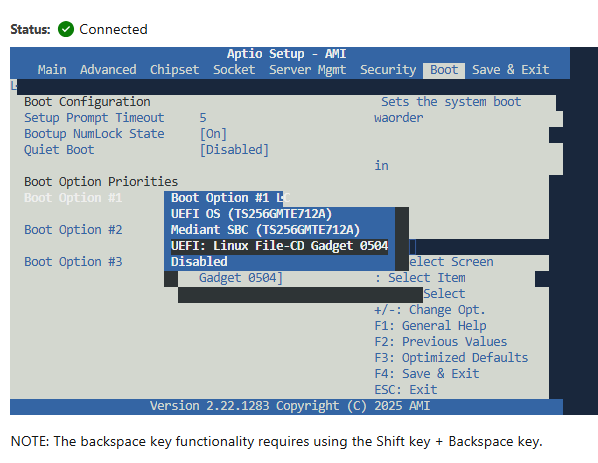
On the BIOS setting, go to Boot > Boot Option #1 > UEFI: Linux File-CD: |
|
8.
|
Choose Save & Exit (or press F4). |
|
9.
|
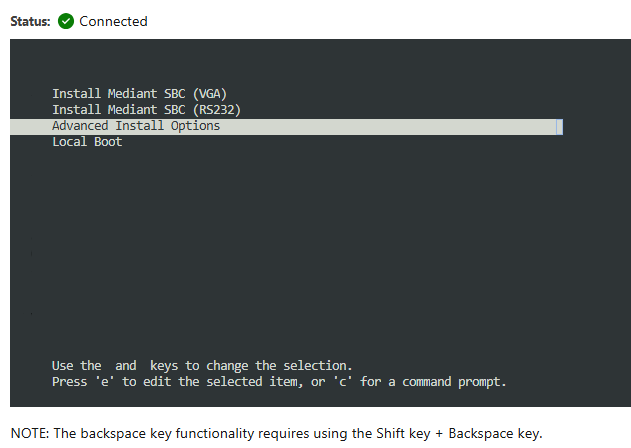
After the reboot, the server boots from the attached ISO file of the SBC installation: |
|
10.
|
Choose Advanced Install Options. |
|
11.
|
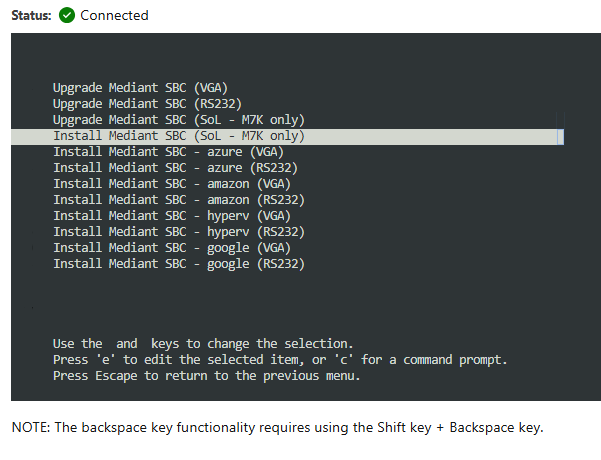
Choose Install Mediant SBC (SoL – M7K only). |
|
12.
|
Press the Enter key; installation starts from the BMC virtual media. |
|
13.
|
Wait for the 'Complete' prompt, which notifies you that installation is complete. Installation takes approximately 20 minutes. |
|
14.
|
Stop the Virtual Media that was selected before for ISO installation. |
|
15.
|
Press Enter to reboot the server. After rebooting, the server boots from the local disk to the newly installed device software. |